C++ vscode环境配置
c/c++ 编译器, 下载与安装
gcc: GCC(GNU Compiler Collection)是由 GNU 开发的编程语言编译器。
GCC编译工具链(toolchain),是指以GCC编译器为核心的一整套工具,主要包括:
- gcc-core:即GCC编译器,用于完成预处理和编译过程,把C代码转换成汇编代码。
- Binutils :除GCC编译器外的一系列小工具包括了链接器ld,汇编器as、目标文件格式查看器readelf等。
- glibc:包含了主要的 C语言标准函数库,C语言中常常使用的打印函数printf、malloc函数就在glibc 库中。
window :下载 MinGW,MinGW - Minimalist GNU for Windows - Browse Files at SourceForge.net,并配置环境变量。
linux:自带,或者使用包管理器进行安装
yum -y install gcc-c++Clang: 是一个编译器,目前用来编译C、C++、Objective-C语言。
Clang只是一个编译器前端,其将上述的C类语言编译成一种“汇编语言(中间语言)”。接着,通过LLVM(Low Level Virtual Machine)作为后端,将这种“汇编语言”编译成针对不同机器的二进制机器语言。
windows: LLVM Download Page, 下载安装后配置环境变量。
linux:
yum -y install clangwindows 平台也可以直接安装 visual studio,使用 vs 的C++ 库。
vscode环境配置:
-
下载vscode
-
下载插件:C/C++ , code runner
-
ctrl shift p 打开命令栏
-
编译环境配置c_cpp_properties.json:
输入C/C++,选择“Edit Configurations(UI)”进入配置。这里配置两个选项: - 编译器路径 和 IntelliSense 模式, 可以根据 安装的 编译器 gcc 或者是 clang 进行配置。配置完成后,此时在侧边栏可以发现多了一个.vscode文件夹,并且里面有一个c_cpp_properties.json文件。该文件即为编译环境的配置文件。我的配置为 gcc 编译器。
{ "configurations": [ { "name": "Win32", "includePath": [ "${workspaceFolder}/**" ], "defines": [ "_DEBUG", "UNICODE", "_UNICODE" ], "windowsSdkVersion": "10.0.19041.0", "compilerPath": "D:/mingw-w64/x86_64-8.1.0-release-posix-seh-rt_v6-rev0/mingw64/bin/g++.exe", "cStandard": "c17", "cppStandard": "c++17", "intelliSenseMode": "windows-gcc-x64" } ], "version": 4 } -
构建任务配置tasks.json:
打开命令栏,输入tasks,选择“Tasks:Configure Default Build Task”,再选择“C/C++: g++.exe build active file” 如果是 clang,则选择对应的 cl.exe 进行配置,选择完成之后,会生成一个tasks.json的配置文件。
{ "version": "2.0.0", "tasks": [ { "type": "cppbuild", "label": "C/C++: g++.exe 生成活动文件", "command": "D:\\mingw-w64\\x86_64-8.1.0-release-posix-seh-rt_v6-rev0\\mingw64\\bin\\g++.exe", "args": [ "-fdiagnostics-color=always", "-g", "${file}", "-o", "${fileDirname}\\${fileBasenameNoExtension}.exe" ], "options": { "cwd": "${fileDirname}" }, "problemMatcher": [ "$gcc" ], "group": "build", "detail": "编译器: D:\\mingw-w64\\x86_64-8.1.0-release-posix-seh-rt_v6-rev0\\mingw64\\bin\\g++.exe" } ] } -
调试环境配置:
点击菜单栏的Debug—>Start Debugging:选择C++(GDB/LLDB):会生成一个launch.json的文件,该文件记录了调试相关配置。
{ "configurations": [ { "name": "C/C++: g++.exe 生成和调试活动文件", "type": "cppdbg", "request": "launch", "program": "${fileDirname}\\${fileBasenameNoExtension}.exe", "args": [], "stopAtEntry": false, "cwd": "${fileDirname}", "environment": [], "externalConsole": false, "MIMode": "gdb", "miDebuggerPath": "D:\\mingw-w64\\x86_64-8.1.0-release-posix-seh-rt_v6-rev0\\mingw64\\bin\\gdb.exe", "setupCommands": [ { "description": "为 gdb 启用整齐打印", "text": "-enable-pretty-printing", "ignoreFailures": true }, { "description": "将反汇编风格设置为 Intel", "text": "-gdb-set disassembly-flavor intel", "ignoreFailures": true } ], "preLaunchTask": "C/C++: g++.exe 生成活动文件" } ], "version": "2.0.0" } -
配置生成文件到 build 目录下:
插件平台搜索 code runner ,打开 settings.json 文件,找到以下配置:
"c": "cd $dir && gcc $fileName -o **.\\build\\**$fileNameWithoutExt && **.\\build\\**$dir$fileNameWithoutExt",
"cpp": "cd $dir && g++ $fileName -o **.\\build\\**$fileNameWithoutExt && **.\\build\\**$fileNameWithoutExt",
添加上 build 目录的位置,然后在项目工程目录下,新建一个build 文件夹。
-
添加当前项目工程目录到 vscode workspace下:选择 add folder to workspace
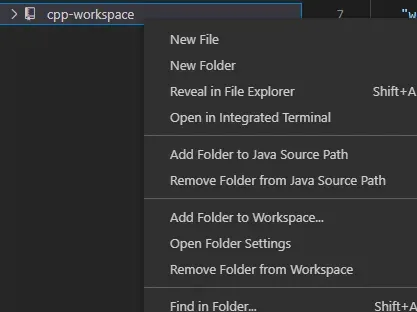
-
配置完成之后的目录结构:
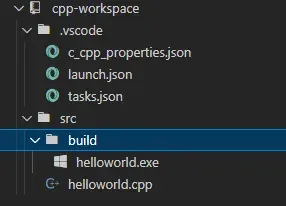
├─.vscode
│      c_cpp_properties.json
│      launch.json
│      tasks.json
│
└─src
    │  helloworld.cpp
    │
    └─build
            helloworld.exe
visual studio 环境:
新建一个新的空项目:
选择:show all files
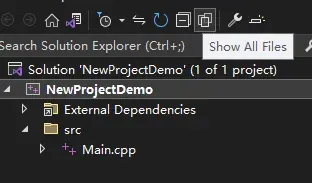
properties 设置:
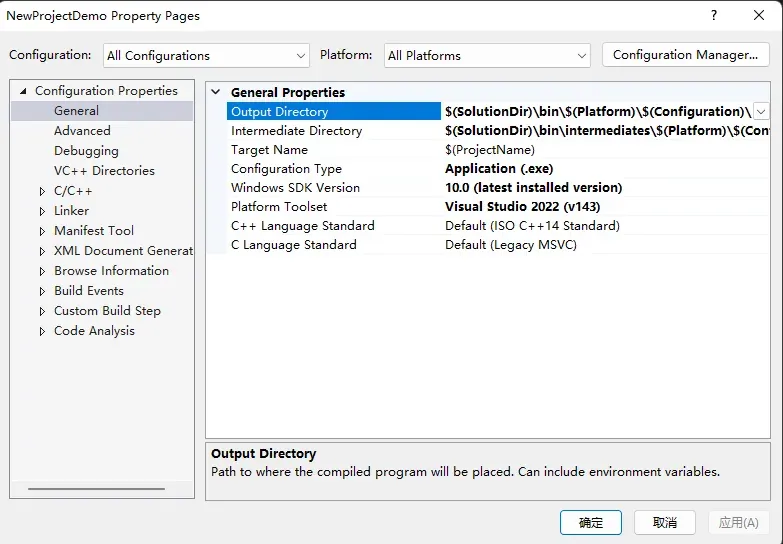
选择 all configurations 和 all platforms
设置 output directory:$(SolutionDir)\bin$(Platform)$(Configuration)\
设置 intermediate directory:$(SolutionDir)\bin\intermediates$(Platform)$(Configuration)\
这样设置会使得生成的文件有一个好的目录结构:
D:.
│  NewProjectDemo.sln
│  NewProjectDemo.vcxproj
│  NewProjectDemo.vcxproj.filters
│  NewProjectDemo.vcxproj.user
│
├─bin
│  ├─intermediates
│  │  └─x64
│  │      └─Debug
│  │          │  Main.obj
│  │          │  NewProjectDemo.Build.CppClean.log
│  │          │  NewProjectDemo.exe.recipe
│  │          │  NewProjectDemo.ilk
│  │          │  NewProjectDemo.log
│  │          │  vc143.idb
│  │          │  vc143.pdb
│  │          │
│  │          └─NewProjectDemo.tlog
│  │                  CL.command.1.tlog
│  │                  CL.read.1.tlog
│  │                  CL.write.1.tlog
│  │                  link.command.1.tlog
│  │                  link.read.1.tlog
│  │                  link.write.1.tlog
│  │                  NewProjectDemo.lastbuildstate
│  │
│  └─x64
│      └─Debug
│              NewProjectDemo.exe
│              NewProjectDemo.pdb
│
└─src
        Main.cpp